¶ Contact Center: CX Campaigns
Contact center preview dialer campaigns are powerful tools for improving the efficiency and effectiveness of customer service centers. By automating the dialing process, providing preview information, prioritizing calls, and tracking agent productivity, customer service centers can provide faster, more effective customer service.
¶ Architecture
- The dialer system is responsible for automatically dialing the phone numbers on the customer database list. Before the call is connected, the system shows the customer's information on the agent's interface.
- The customer database stores the customer's information, such as name, phone number, and reason for the call.
- The agent's interface displays the customer's information, allowing the agent to prepare for the call and choose to connect the call when they are ready.
¶ Features and Functionality
- Contact center preview dialer campaigns offer several features and functionality to improve the efficiency and effectiveness of customer service centers.
- Automatic dialing: The dialer system automatically dials phone numbers on the customer database list, saving agents time and effort.
- Preview information: The customer's information, such as name, phone number, and reason for the call, is displayed on the agent's interface before the call is connected, allowing the agent to prepare for the call.
- Call prioritization: The dialer system can prioritize calls based on specific criteria, such as the customer's importance or urgency, improving the overall efficiency of the customer service center.
¶ QVOICE CX: Campaigns Configuration
Navigate to Admin Portal
- On top bar, navigate to Contact Center
- On left bar, navigate to Campaigns

|
Click on Add button in the top right corner
| Campaign Options | Description |
|---|---|
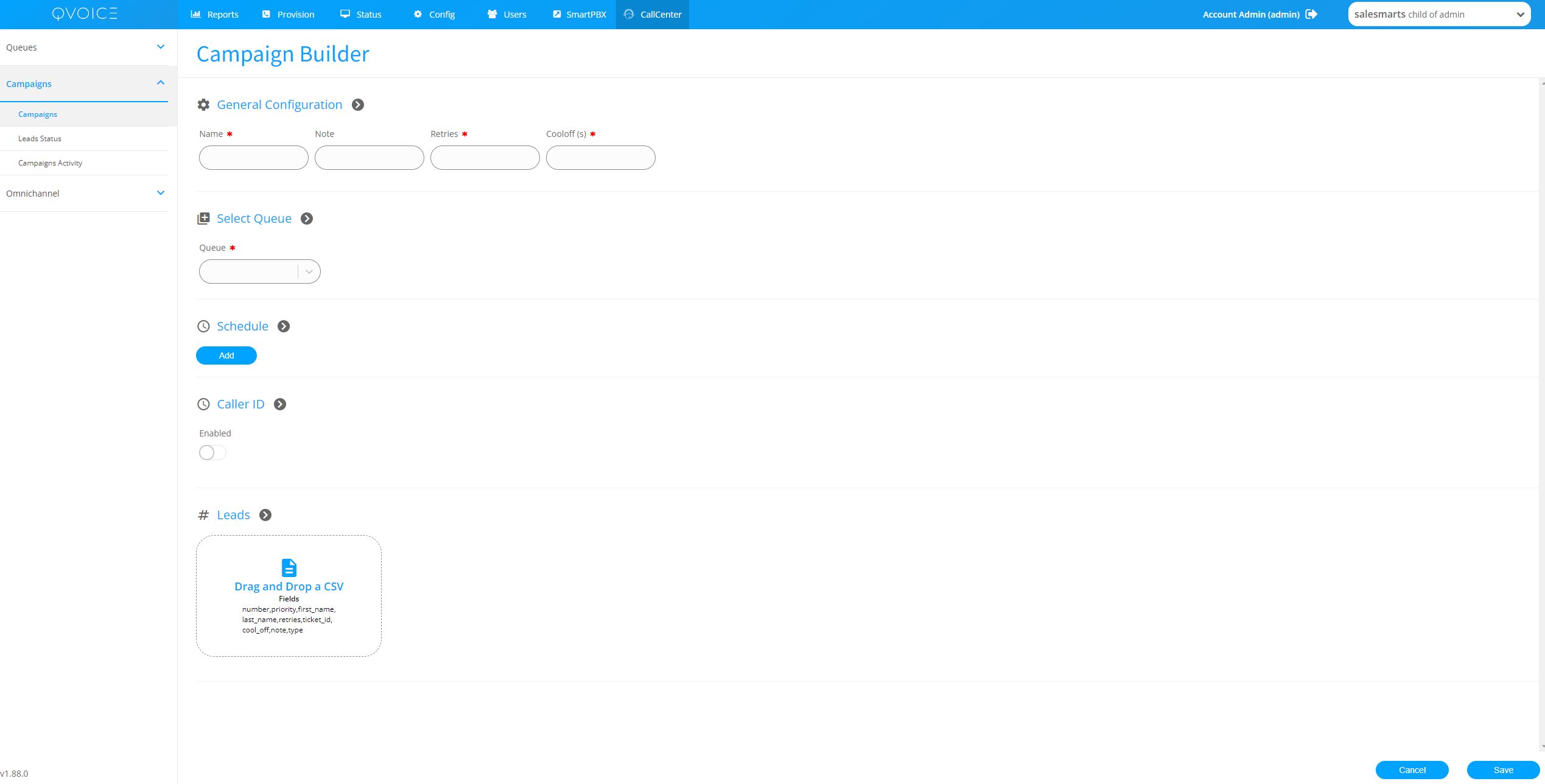
| Name | Specify a Campaign Name. Best practice is to specify a name in relation to the campaign |
| Note | A note that is used to explain the purpose of Campaign |
| Retries | Number of times to retry dialing a lead in cooloff state, before timing out and failing. This reduces the risk of over dialing a lead causing frustration |
| CoolOff | Number of seconds to wait before retrying the lead. If the call to a lead fails to connect to a customer, it is advisable to wait at least an hour before trying to dial the same lead again |
| Queue | Bind the Campaign to a Queue that has already been configured. The Queue already defines the agent hunt strategy as well as individual agents. All Queue agent logic applies to the Campaigns, such as agent login/logout, warpup time, etc |
| Schedule | A Campaign can be turned ON or OFF. Alternatively a Campaign Schedule can be specified so when the Campaign is in ON state, it will only run during the scheduled time range. |
| Caller ID | Specify the Caller ID name and number that will be used when Campaign dials a customer lead. The default Caller ID of the Campaign is the Queue Phone Number configured during the Queue Configuration, if the Queue does not have a configured Phone Number, then Account Caller ID information will be used. Alternatively a Campaign Caller ID can be explicitly set to the Account caller id info or Custom defined Caller id Name and Number. |
| Leads | Upload the leads CSV file into the campaign. The leads CSV format is as follows: number, priority, first_name, last_name, retries, ticket_id, cool_off, note, type (green highlight indicated mandatory fields) The Campaign dialer will send the Lead information to the Agent in order to inform the agent that the incoming call is from a dialer and to whom the agent is being connected to. |
|
¶ QVOICE CX: Campaigns Lead Status
The Campaigns Lead Status page shows the real time dialer status for each lead.
An individual lead can have following states
| Lead Status | Description |
|---|---|
| Active | Lead is ready to be dialed. |
| Cool Off | Lead number has been dialed, but the call was not answered. The lead is now in cooloff state and will remain in cooloff state until timeout. |
| Voicemail | Lead number was dialed and answered. However Agent heard the voicemail and set the Lead state into Voicemail state. The Voicemail state is same as Cool Off and the lead will remain in cooloff state until timeout. |
| Successful | Lead number has been dialed and answered by a customer. |

Campaign Start and Stop
Each campaign can be turned ON or OFF using the Play/Stop Button
If the campaign is stopped, any leads that were in progress will be stopped and set to retry state.
Any leads in cooloff state will remain in cooloff state even after the campaign is restarted, until the timeout expires.
Note: That inbound Queue calls take priority over Campaigns, therefore Campaigns dialer will only start dialing when there are NO customers waiting in the inbound Queue and Agents are available to take calls.
¶ QVOICE CX: Campaigns Activity
A detailed cradle to grave call report for all dialed leads including the dialed status, agent name and extension, ring time and talk time.
¶ Campaigns Leads Sample File
Sample campaign leads file to be used to upload leads into the campaign
/qvoice-campaign-leads-sample.csv