Account Settings
Account Settings control phone-system behavior for the whole tenant — caller ID defaults, routing options, blacklists, and advanced call features. Resellers and technical administrators use this area to turn features on or off per customer account.
Where to find Account Settings
In the QVOICE Platform Admin Portal:
- Open SmartPBX.
- Open Account Settings.
- Choose a tab (Caller-ID, Blacklist, Misc, or AutoClip).
- Change settings and click Update (Save).
Screenshot gallery: Click any thumbnail to zoom.
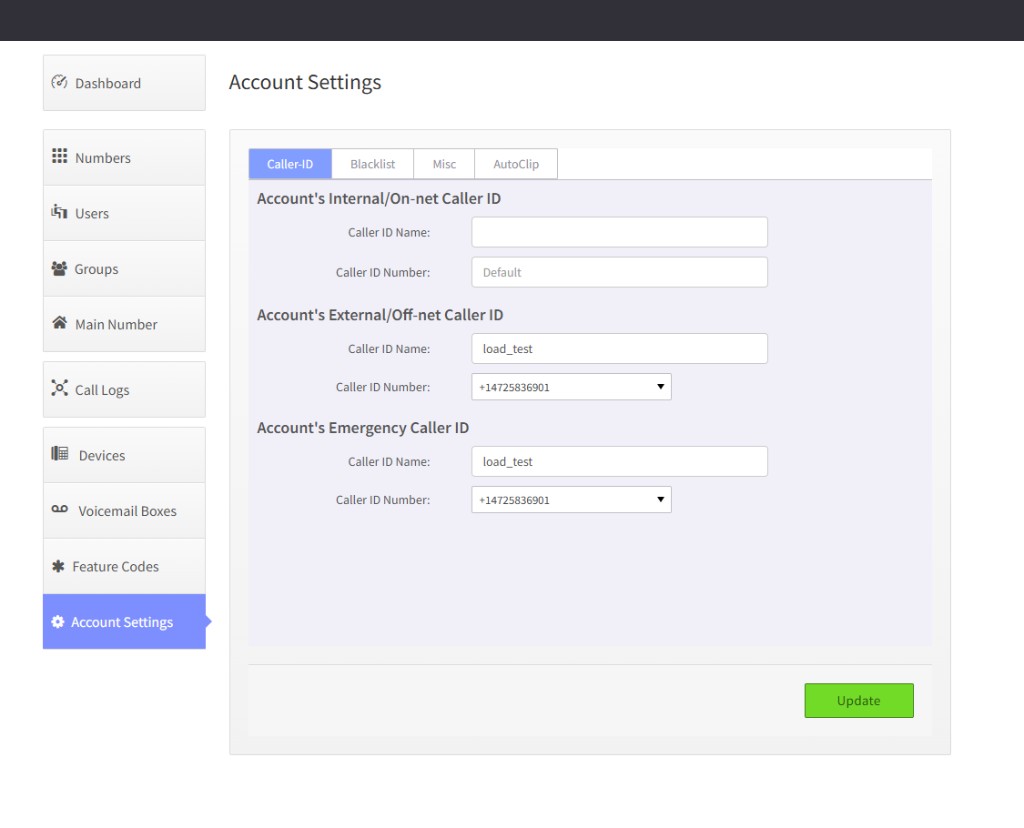 |
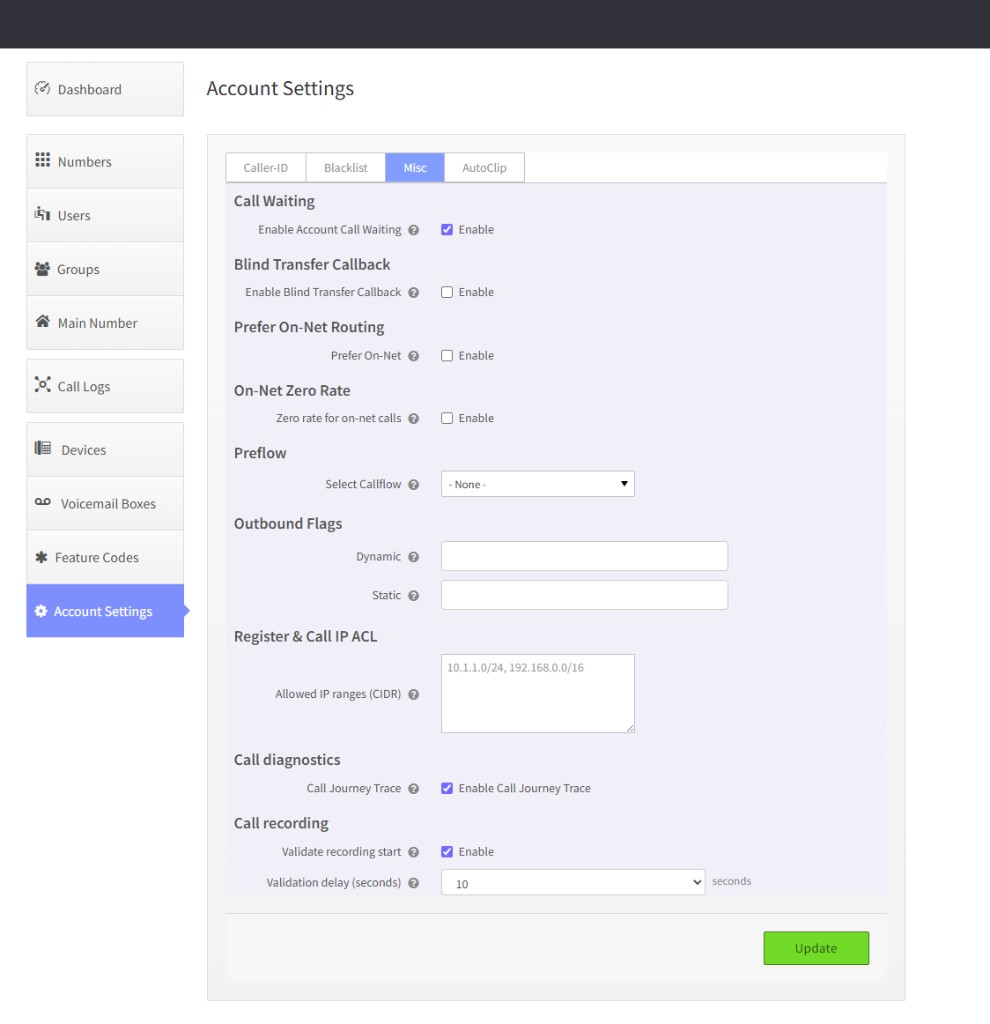 |
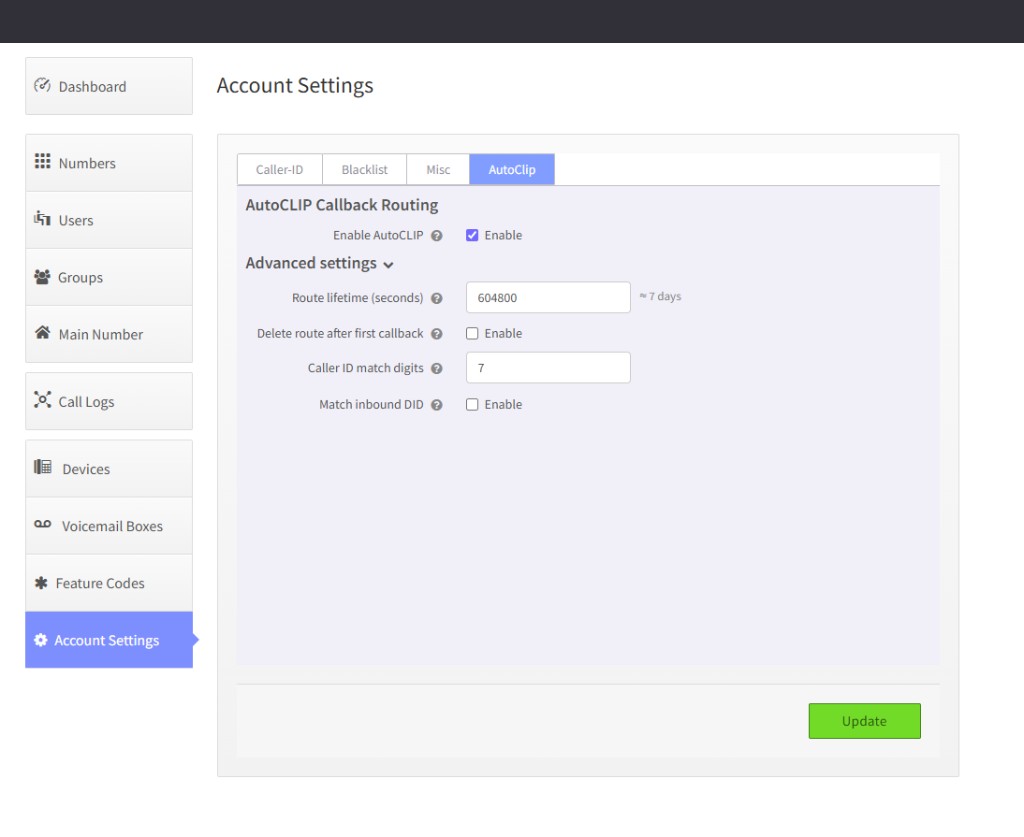 |
Settings overview
Use this table as a map of what lives in Account Settings. Sections marked Documented below have full guidance on this page; others can be added over time.
| Tab | Setting | Summary |
|---|---|---|
| Caller-ID | Internal / on-net caller ID | Default name and number for on-net calls |
| Caller-ID | External / off-net caller ID | Default name and number for outbound PSTN calls |
| Caller-ID | Emergency caller ID | E911 caller ID for the account |
| Caller-ID | Asserted ID | Asserted identity for supported trunks |
| Blacklist | Blacklists | Assign account blacklists for inbound blocking |
| Misc | Call waiting | Enable or disable call waiting for the whole account |
| Misc | Blind transfer callback | Ring the agent back when a blind transfer fails — Documented below |
| Misc | Prefer on-net routing | Route matching platform numbers on-net instead of PSTN — Documented below |
| Misc | On-net zero rate | Zero per-minute rate for on-net loopback legs — Documented below |
| Misc | Off-Net Inbound | Zero per-minute rate for inbound PSTN calls to account DIDs — Documented below |
| Misc | Off-Net Outbound | Zero per-minute rate for outbound PSTN calls via the carrier trunk — Documented below |
| Misc | Preflow | Run a callflow before any other callflow on the account |
| Misc | Outbound flags | Custom outbound routing flags (static / dynamic) |
| Misc | Register & call IP ACL | Restrict SIP registration and inbound calls by source IP |
| Misc | Call journey trace | Capture call journey timeline on CDRs |
| Misc | Call recording — validate start | Check that recordings are writing after start — Documented below |
| AutoClip | AutoCLIP callback routing | Route customer callbacks to the last outbound agent — Documented below |
AutoCLIP Callback Routing
What is this?
When someone on your team calls a customer from their phone or softphone, QVOICE Platform remembers that connection. If the customer calls your company number back, the call can go straight to the same person instead of waiting in the main menu or queue.
Why is it useful?
- Customers reach the agent they were already talking to — less repetition and faster resolution.
- Sales and account teams keep continuity on follow-up calls.
- Reduces frustration when callers say they already explained their issue to someone else.
How to turn it on
- Open SmartPBX → Account Settings.
- Select the AutoClip tab.
- Enable AutoCLIP.
- Adjust Advanced settings if needed (see below).
- Click Update.
flowchart LR
  outbound[Agent calls customer] --> link[Platform saves callback link]
  inbound[Customer calls company number] --> match{Number matches?}
  match -->|Yes| agent[Ring same agent]
  match -->|No| normal[Normal inbound routing]
Optional settings (Advanced)
| Setting | What it means | Default |
|---|---|---|
| Route lifetime | How long the callback link stays active | 7 days |
| Delete route after first callback | Remove the link after one successful callback | Off |
| Caller ID match digits | Match the callback using the last digits of the caller's number | 7 digits |
| Match inbound DID | Only connect if the customer dials the same company number the agent used on the outbound call | Off |
Good to know
- Applies to the whole account, not individual users.
- Only outbound calls to external phone numbers create a link; calls between internal extensions do not.
- If the agent has call forwarding on their user profile, normal forwarding still applies.
- The feature is off by default — enable it per account when callback-to-agent behavior is required.
Blind Transfer Callback
What is this?
When an agent blind-transfers a call to a colleague or external number and that person is busy, does not answer, or cannot be reached, QVOICE Platform rings the transferring agent back automatically so they know the transfer did not succeed.
Why is it useful?
- Agents are not left wondering whether the customer ever connected.
- Reception and support staff can try another destination or take the caller back immediately.
- Familiar behavior for teams moving from on-prem phone systems that offer blind transfer callback.
How to turn it on
- Open SmartPBX → Account Settings.
- Select the Misc tab.
- Under Blind Transfer Callback, enable the feature.
- Click Update.
flowchart LR
  xfer[Agent blind transfers call] --> fail{Target busy or no answer?}
  fail -->|Yes| callback[Ring agent back]
  fail -->|No| ok[Call connected]
Good to know
- Works for blind transfers to internal extensions and external numbers (details differ slightly by destination type).
- The agent must transfer from their phone or softphone (the device they are registered on).
- If the person being transferred to has call waiting enabled, a busy line may still allow the transfer to connect; callback mainly helps when the transfer truly fails.
- If the target is on Do Not Disturb and no phones are ringing, the transferring agent still gets called back.
- The feature is off by default.
Recording Start Validation
What is this?
After a call recording starts, QVOICE Platform waits a few seconds and checks that the recording file is actually being written. This helps your operations team spot recording problems early instead of discovering empty or missing files later.
Why is it useful?
- Catch misconfigured recording or storage issues close to call time.
- Useful for accounts that rely on compliance, quality assurance, or dispute resolution recordings.
- Does not change how users start or stop recordings — it is a background health check only.
How to turn it on
- Open SmartPBX → Account Settings.
- Select the Misc tab.
- Under Call recording, enable Validate recording start.
- Choose a validation delay of 5–10 seconds.
- Click Update.
Admin permissions
This setting may require elevated account permissions, in the same area as other advanced account diagnostics.
Good to know
- Does not stop, restart, or block recordings.
- Off by default — enable for accounts where recording reliability is important.
- If validation fails, your monitoring or support processes can investigate; callers are not interrupted.
Off-Net Inbound
What is this?
When Off-Net Inbound is enabled for an account, inbound PSTN calls to the account's DIDs are rated at zero per-minute usage on the off-net origination leg. Callers still reach the account normally; only billing and CDR rating change for that leg.
Why is it useful?
- Support bundled or promotional inbound trunk packages where PSTN minutes should not appear on usage reports.
- Simplify reseller or trial accounts where inbound PSTN should not generate per-minute charges.
- Apply account-specific commercial terms without changing carrier routing or DID configuration.
How to turn it on
- Open SmartPBX → Account Settings.
- Select the Misc tab.
- Under Off-Net Inbound, enable the checkbox.
- Click Update.
Platform administrator only
Only platform administrators (superduper admin accounts) can change this setting. Other account administrators see the current value as read-only (lock icon).
| Account field | Default | Applies to |
|---|---|---|
inbound_offnet_zero_rate |
false |
Inbound PSTN → account DID (offnet-origination legs) |
flowchart LR
  pstn[PSTN caller] --> did[Account DID]
  did --> rate{inbound_offnet_zero_rate?}
  rate -->|Yes| zero[Zero per-minute rate at authz]
  rate -->|No| normal[Normal Hotornot / rating]
  zero --> route[Normal inbound routing]
  normal --> route
Good to know
- Rating is applied in ecallmgr at call authorization; Hotornot is not used for these legs when the flag applies.
- Does not change how inbound calls are routed — only how the PSTN origination leg is rated on CDRs and usage reports.
- Independent of On-Net Zero Rate (platform loopback) and Off-Net Outbound (outbound trunk legs).
- Off by default — enable only when billing policy requires free inbound PSTN for the account.
- Changes apply to new calls after save; active calls keep their original rating.
Off-Net Outbound
What is this?
When Off-Net Outbound is enabled for an account, outbound PSTN calls through the carrier trunk are rated at zero per-minute usage on the off-net termination leg. Dialing and routing behave the same; only billing and CDR rating change for that leg.
Why is it useful?
- Support flat-rate or bundled outbound trunk packages where PSTN minutes should not appear on usage reports.
- Offer trial or internal accounts free outbound PSTN without altering dial plans or carrier trunks.
- Apply per-account commercial terms for reseller or partner arrangements.
How to turn it on
- Open SmartPBX → Account Settings.
- Select the Misc tab.
- Under Off-Net Outbound, enable the checkbox.
- Click Update.
Platform administrator only
Only platform administrators (superduper admin accounts) can change this setting. Other account administrators see the current value as read-only (lock icon).
| Account field | Default | Applies to |
|---|---|---|
outbound_offnet_zero_rate |
false |
Outbound PSTN via carrier trunk (offnet-termination legs) |
flowchart LR
  ext[User or device] --> trunk[Carrier PSTN trunk]
  trunk --> rate{outbound_offnet_zero_rate?}
  rate -->|Yes| zero[Zero per-minute rate at authz]
  rate -->|No| normal[Normal Hotornot / rating]
  zero --> pstn[PSTN destination]
  normal --> pstn
Good to know
- Rating is applied in ecallmgr at call authorization; Hotornot is not used for these legs when the flag applies.
- Does not change outbound routing, caller ID, or trunk selection — only CDR rating for the PSTN termination leg.
- Independent of On-Net Zero Rate and Off-Net Inbound.
- Off by default — enable only when billing policy requires free outbound PSTN for the account.
- Changes apply to new calls after save; active calls keep their original rating.
Billing and routing flags (Misc tab)
Several Misc settings control how calls are routed on-net versus PSTN and whether certain legs are billed at a zero per-minute rate. These options affect usage charges and CDR rating for the account.
For full guidance on PSTN zero-rate flags, see Off-Net Inbound and Off-Net Outbound above. This section summarizes all four related flags and the API.
Platform administrator only
Prefer on-net routing, On-net zero rate, Off-net inbound, and Off-net outbound are visible to all account administrators on the Misc tab, but only platform administrators (superduper admin accounts) can change them. Other users see the current values as read-only (lock icon). Tenant administrators cannot enable or disable these flags from SmartPBX.
Where to find them
- Open SmartPBX → Account Settings.
- Select the Misc tab.
- Locate Prefer On-Net Routing, On-Net Zero Rate, Off-Net Inbound, and Off-Net Outbound.
- Platform administrators: change checkboxes and click Update.
Prefer on-net routing
When enabled, outbound calls to phone numbers that exist on the QVOICE Platform platform are routed on-net (within the cluster) instead of through the PSTN trunk, even when the destination would normally force outbound.
| Account field | Default |
|---|---|
prefer_onnet |
false |
On-net zero rate
When enabled, outbound calls that are routed on-net via the platform loopback receive a zero per-minute rate for this account. Rating uses Hotornot with a synthetic zero rate for those legs.
| Account field | Default |
|---|---|
onnet_zero_rate |
false |
This is separate from off-net zero rate. It applies only to on-net loopback legs, not PSTN/trunk calls. See Off-Net Inbound and Off-Net Outbound above for PSTN zero-rate settings.
flowchart TB
  subgraph onnet [On-net path]
    PO[prefer_onnet] --> route[Route on platform]
    OZ[onnet_zero_rate] --> hotornot[Hotornot zero rate]
  end
  subgraph offnet [Off-net PSTN path]
    IN[inbound_offnet_zero_rate] --> ecallmgr_in[ecallmgr authz — inbound DID]
    OUT[outbound_offnet_zero_rate] --> ecallmgr_out[ecallmgr authz — outbound trunk]
  end
API (platform administrators)
These flags are stored on the Kazoo account document. Example:
PATCH /v2/accounts/{ACCOUNT_ID}
Content-Type: application/json

{
  "data": {
    "prefer_onnet": true,
    "onnet_zero_rate": true,
    "inbound_offnet_zero_rate": true,
    "outbound_offnet_zero_rate": true
  }
}
Good to know
- All four flags default to off (
false). - Off-net zero rate affects PSTN/trunk legs only; on-net zero rate affects platform loopback legs only — they are independent.
- Enabling zero rate does not change call routing; it only changes how those legs are rated on CDRs and usage reports.
- Use off-net zero rate only when commercial or internal billing policy requires free PSTN legs for a specific account (for example trials, bundled trunk packages, or reseller arrangements).
- Changes take effect on new calls after the account is saved; existing active calls keep their original rating.